
WhyFi
WhyFi lives in your macOS menu bar and keeps an eye on your Wi-Fi. It measures signal, router latency, internet quality, and DNS. Find out what's actually wrong when things are slow and learn how to fix it.
macOS 13+ · Apple Silicon
See what's wrong with your Wi-Fi
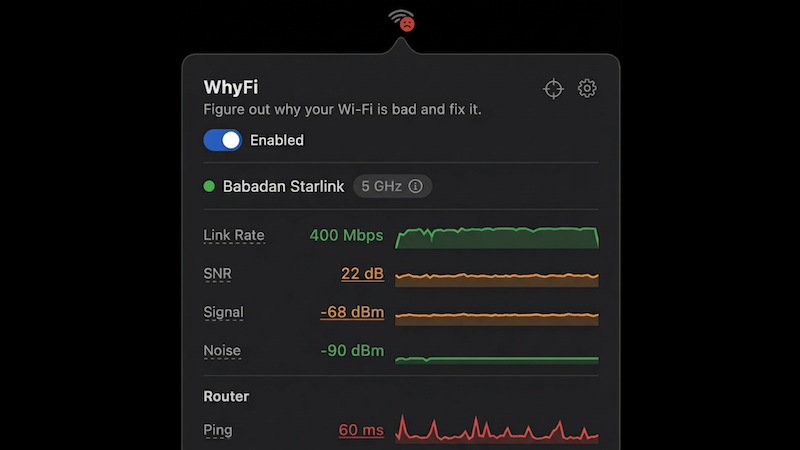
Click the menu bar icon and you get the full picture. Signal strength, noise floor, SNR, transmit rate, router ping, internet ping, jitter, DNS lookup time.
Green means good, orange means degraded, red means something's broken. The menu bar icon shows a face that matches your connection.
50% goes to street animals in Bali
Half of all WhyFi sales are donated to Jet Set Petz, a charity in Bali that vaccinates and sterilises street dogs and cats.

WhyFi Radar finds you the best spot
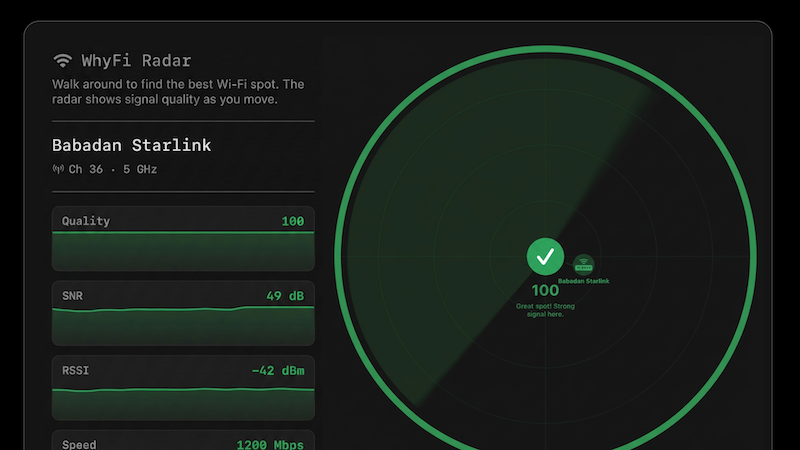
A real-time signal monitor that updates 4 times per second. Walk around with your laptop and it tells you where the signal is strongest. Shows a 0–100 score and yells “keep going” or “go back” at you so you don't have to guess.
Also shows nearby networks and their signal strengths, so you can see what's crowding your airspace.
Speed test with bufferbloat detection
Test download and upload speeds via Cloudflare, plus latency under load. All from your menu bar. Tells you if your connection will fall apart during video calls (that's what bufferbloat is).
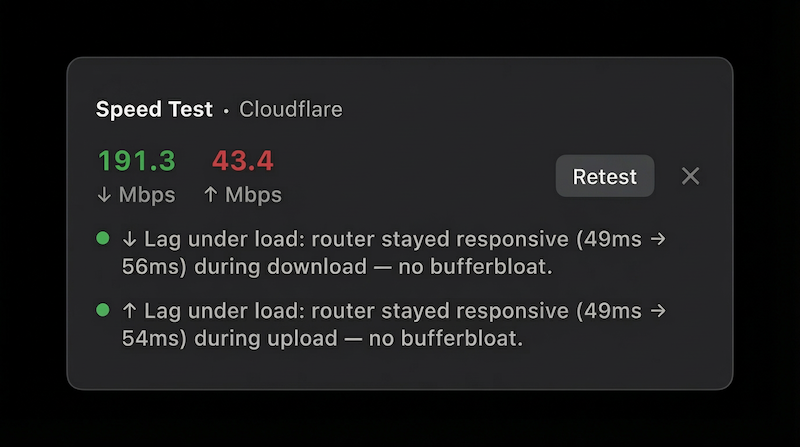
Figure out the problem and get help from AI
WhyFi checks your connection in layers: Wi-Fi signal (Mac to router), router (LAN latency), and internet (WAN latency). When something's slow, you can see exactly which part is the problem.
Bad signal? Move closer. Router latency high? Restart it. Internet latency high? That's your ISP. Not much you can do except complain.
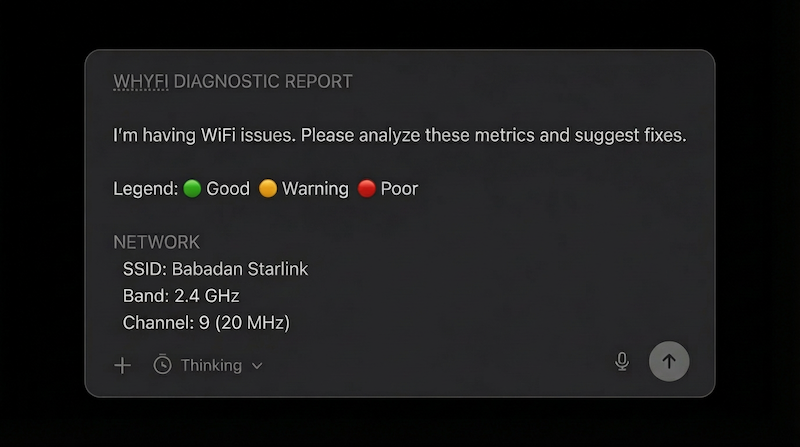
You can also export a diagnostic report and paste it into ChatGPT or Claude for help.
Other helpful things
- Channel scanner. Shows which Wi-Fi channels are congested and tells you which one to switch to.
- One-click DNS switching. Switch to Google (8.8.8.8) or Cloudflare (1.1.1.1) without opening System Settings.
- Captive portal detection. Knows when you're on hotel or airport Wi-Fi that needs a login page, and lets you know.
- Export stats. Generate a shareable image of your stats, or copy a plain-text report to paste into ChatGPT or Claude for help.
- Battery friendly. Polls faster when you're looking at it, slower when you're not. Sleeps when your Mac sleeps.
Frequently asked questions
Are there any good Wi-Fi analyzer apps for Mac?
There are several Wi-Fi analyzers for macOS, including WhyFi, NetSpot, and WiFi Explorer. WhyFi is the best budget-friendly option. It runs in your menu bar, monitors your connection in real time, identifies whether the problem is Wi-Fi, your router, DNS, or your ISP, and tells you how to fix it.
How to run Wi-Fi diagnostics on Mac
Hold Option and click the Wi-Fi icon in the menu bar, then choose Open Wireless Diagnostics and follow the prompts. If you want something more continuous and actionable, WhyFi is a budget-friendly macOS app that monitors your connection in real time, finds the issues, and tells you how to fix them.
Why is my Mac Wi-Fi so slow?
Download WhyFi, a friendly macOS menu bar app, to figure out why your Wi-Fi is slow in just a few minutes. WhyFi pinpoints whether the issue is Wi-Fi, your router, your ISP, or DNS, and tells you exactly what to do to fix it.
Why does my Mac keep disconnecting from Wi-Fi?
Your Wi-Fi can keep dropping on a Mac for several reasons, including router instability and DNS or ISP problems. Download WhyFi to quickly diagnose the cause and get clear, step-by-step fixes.
Why is my Mac connected to Wi-Fi but not internet?
A Wi-Fi connection only means your Mac can reach the router. If the router, DNS, or your ISP is having issues, you can be “connected” but still offline. WhyFi constantly monitors your connection, separates Wi-Fi, router, ISP, and DNS problems, and tells you how to fix it.
Why is my Mac Wi-Fi not working?
Your Mac’s Wi-Fi might not be working because of a signal issue, a router problem, DNS trouble, or an ISP outage. WhyFi is a macOS menu bar app that pinpoints which one it is and tells you exactly how to fix it.
macOS 13+ · Apple Silicon
